
Understanding Your Monthly SAIGE Report
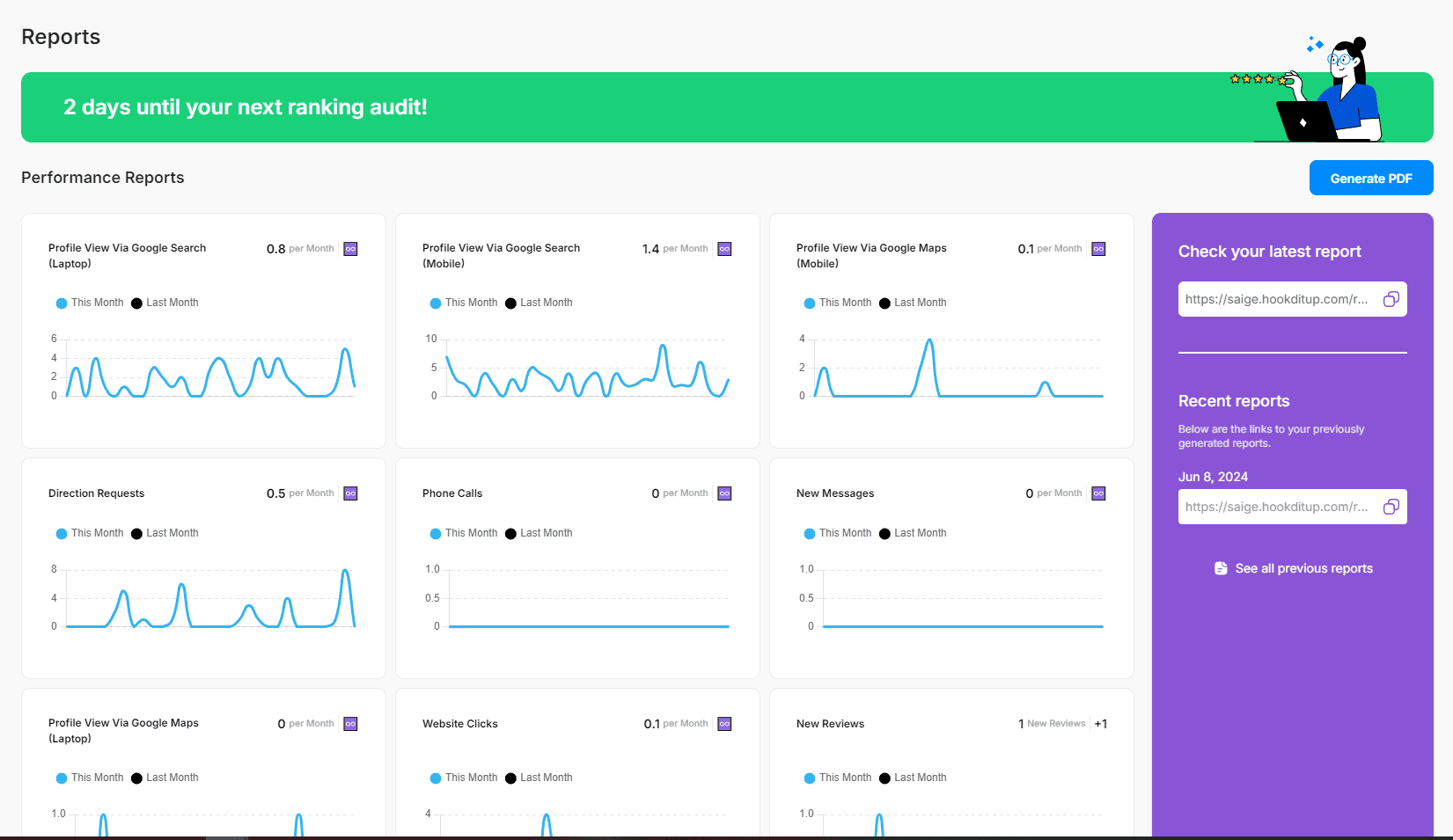
Your monthly SAIGE report is the proof. Heatmap, keyword rank-deltas, lead actions, an estimated pipeline value — all in one branded PDF you can print, email, or hand to a partner who needs to see what their marketing dollars bought.
What's in the report
- Cover page — your logo, business name, and the period the report covers
- Before/after heatmap — full service area, side by side
- Top-3 placement % — by keyword, with the month-over-month delta
- Keyword rank deltas — where each tracked keyword stood at the start of the month vs. now
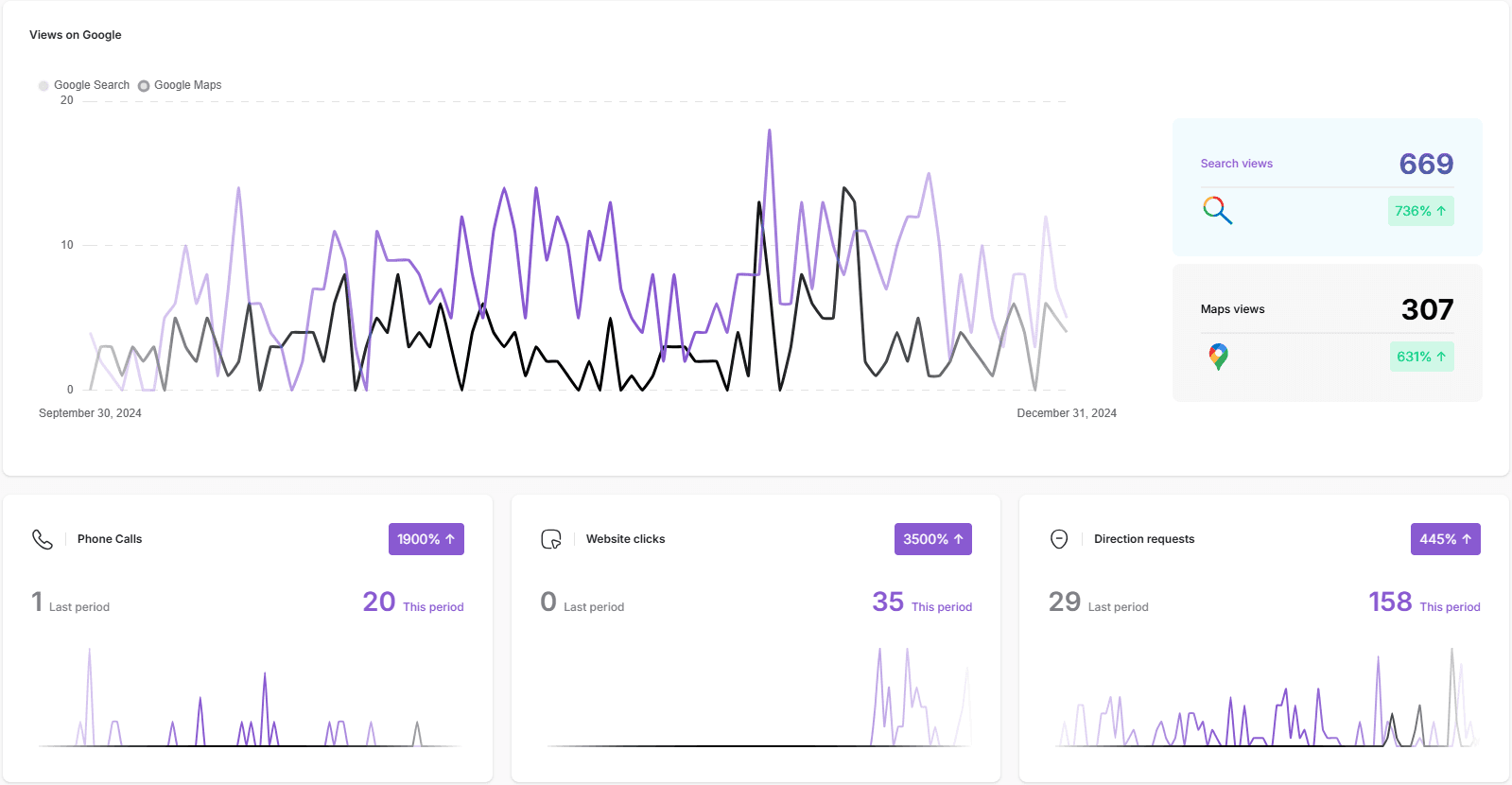
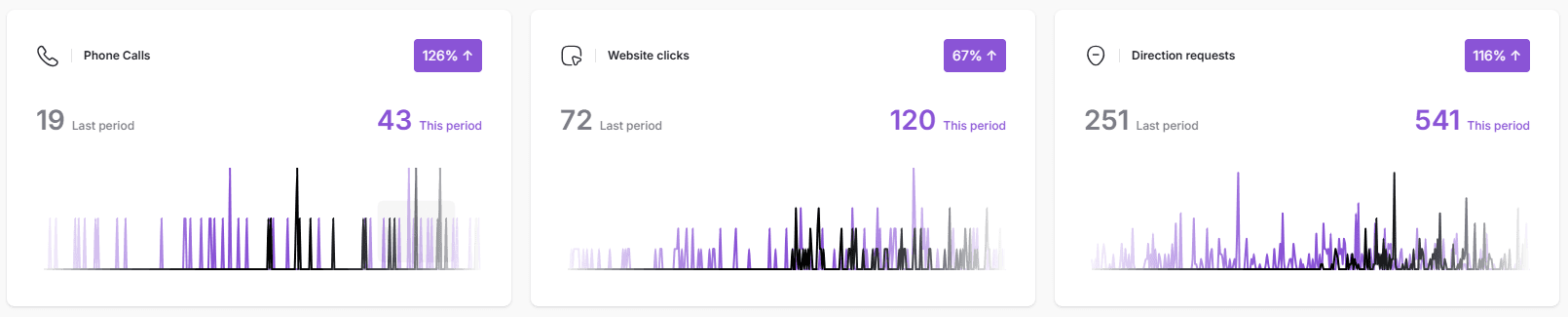
- Lead actions — phone calls, website clicks, direction requests from your Google Business Profile
- Estimated pipeline value — applied to your category's average customer value
- Recommended actions — the 2–3 things that would move rankings most next month
Reading the heatmap
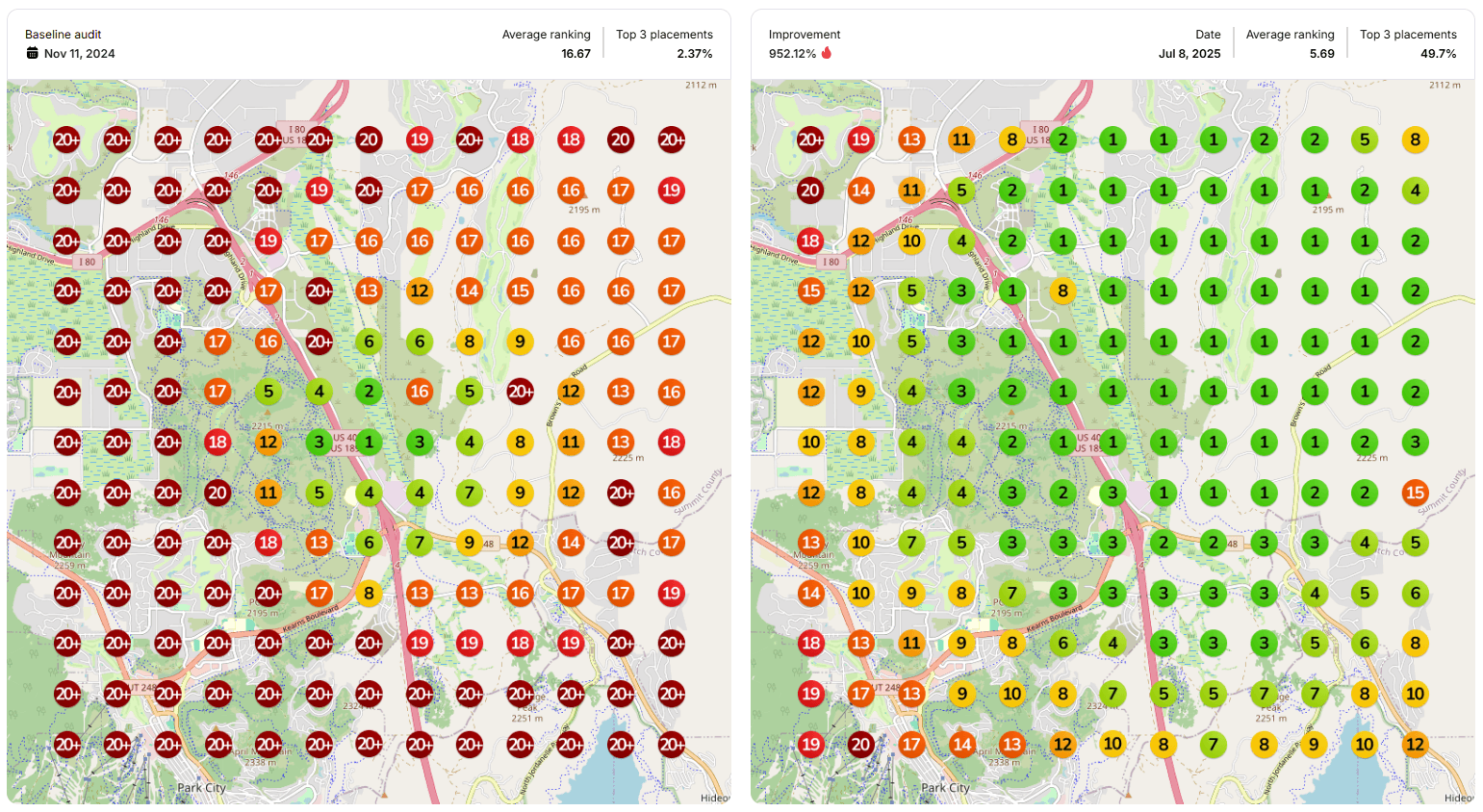
The heatmap is a grid of points across your service area. Each point represents a search SAIGE simulated from that location for one of your priority keywords. The color shows your rank: green for top-3, yellow for 4–10, orange for 11–20, red for outside the top 20. Side-by-side last-month vs. this-month makes month-over-month progress unmistakable.
Top-3 placement %
This is the single most important number in the report. It's the percentage of points across your service area where you rank in the top 3 for your priority keywords. Top-3 is where 80%+ of clicks happen. Anywhere else is invisible.
Keyword rank deltas
For each tracked keyword, the report shows the average rank at the start of the period, the average rank now, and the delta. Positive deltas (rank improved) get a green ↑; negative deltas get a red ↓. A delta of more than 3 positions in either direction is meaningful; smaller swings are noise.
Lead actions
These are the customer behaviors Google itself tracks: phone calls placed from your profile, clicks through to your website, and direction requests. SAIGE pulls these directly from Google's API and shows the trend across the period. Phone calls and direction requests are particularly leading indicators — they correlate strongly with bookings, even when conversion data isn't available.
Estimated pipeline value
Pipeline is computed by multiplying lead actions × your category's typical close rate × your average customer value. The number is conservative by design — it shows the floor of likely pipeline, not the ceiling. Edit your category's defaults in Settings → Reports if you want a more aggressive or more conservative model.
Sharing the report
- PDF download — one click from Reports → Monthly
- Auto-email — invited users on your account get the PDF on the 1st of each month
- Google Drive — auto-archive every month into a folder of your choice
- Web share link — a private URL anyone with the link can view (turn on/off in Settings)
Was this article helpful?
Your feedback helps us prioritize what to write next.