
Upload Images Automation
SAIGE's photo automation drips your photos onto your Google Business Profile with proper geo-tags, keyword-rich filenames and the right cadence so each upload counts as a ranking signal — not just a pretty picture sitting in a gallery.
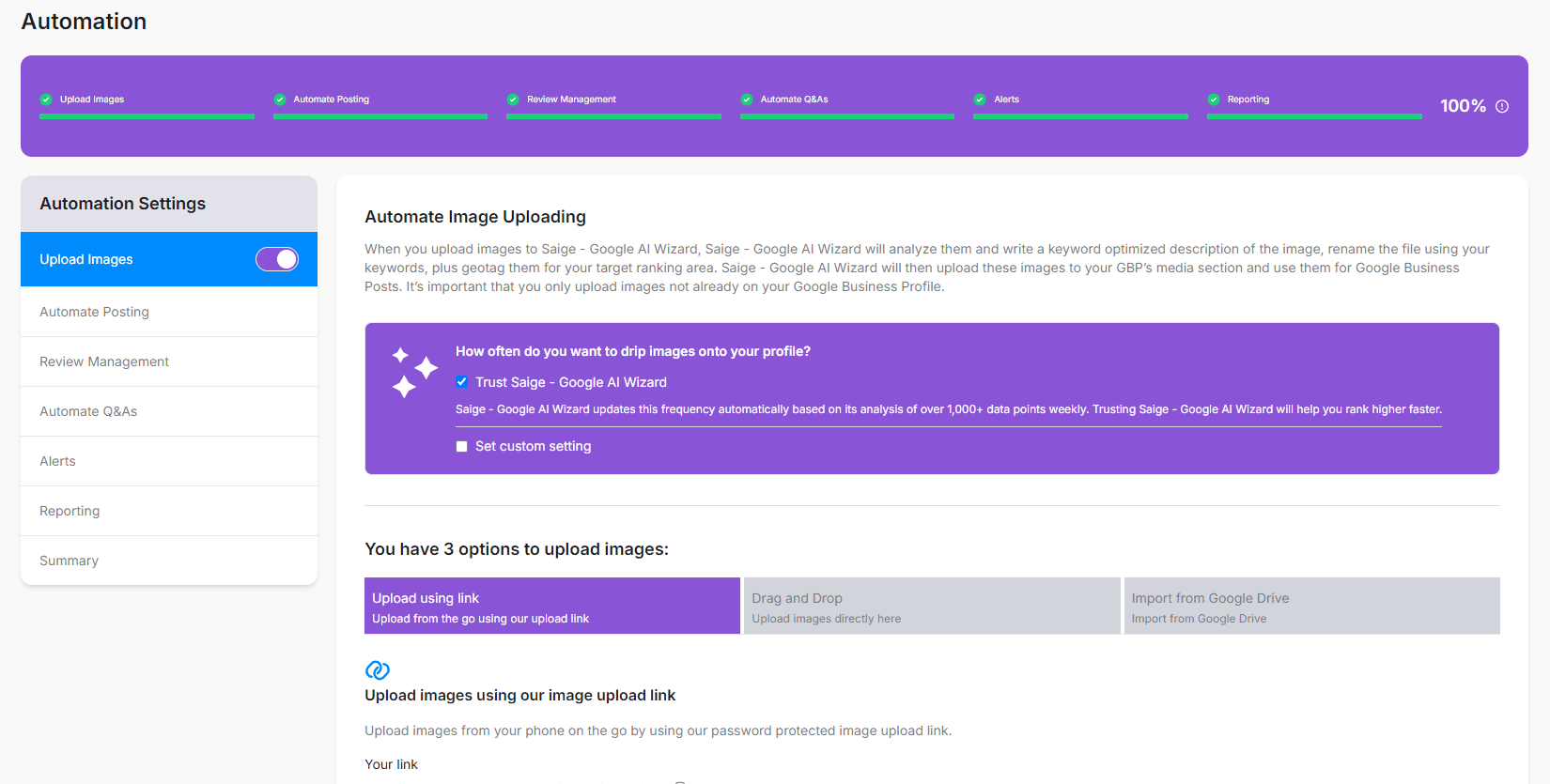
Where photos come from
- CompanyCam — native integration, every photo your crew takes flows in automatically
- Manual upload — drag-and-drop into the Photos tab in the SAIGE dashboard
- Email-to-SAIGE — send photos to a private inbox tied to your account
- Zapier — any photo source (Dropbox, Google Drive, Buildertrend, ServiceTitan) connects through a Zap
What SAIGE does to each photo before it publishes
- Reads or stamps EXIF data — every photo carries the suburb, zip code and category geo-coordinates Google's algorithm reads
- Renames the file — keyword + location semantics replace the camera's IMG_4823.jpg-style filename
- Optimizes for image SEO — resizes to GBP's preferred dimensions, strips unneeded metadata, ensures correct format
- Categorizes — exterior vs. interior vs. team vs. product vs. service, so the upload lands in the right gallery
- Schedules a drip slot — photos publish a few per day rather than dumping all at once
Drip cadence vs. batch uploads
Posting 30 photos in one Tuesday dump tells Google you had a good Tuesday. Posting 30 photos at 3–4 per day for a week tells Google you're a consistently active business. The drip cadence is the entire point — it produces 7 ranking signals instead of 1.
Photo categories Google rewards
- Exterior — building, signage, parking. Google strongly rewards these for proximity confidence.
- Interior — work environment, waiting area, equipment
- Team — staff at work (with consent — see callout)
- Products — what you sell, displayed cleanly
- Services — at-work shots of services being performed (job sites, treatments, photographs)
- Identity — logo and branded artwork (mostly for the profile cover)
Manual upload from the dashboard
Sidebar → Photos. You'll see your full library — published, scheduled, and staged.
Drop one or many photos onto the upload area. SAIGE accepts JPG, PNG and HEIC up to 25 MB each.
If SAIGE's auto-categorizer guessed wrong, click a photo and re-tag. The drip uses these tags to pace publishing across categories evenly.
Photos slot into the next available drip windows automatically. The activity log shows when each one will publish.
Was this article helpful?
Your feedback helps us prioritize what to write next.