Reviewing & Approving Optimization Recommendations
Once SAIGE finishes auditing your Google Business Profile, the optimization rating is just the score. The actual work of pushing it up happens on the Optimization steps screen — where SAIGE turns the audit into a stack of specific, AI-drafted recommendations you approve one at a time or all at once.
Three stages, one progress bar
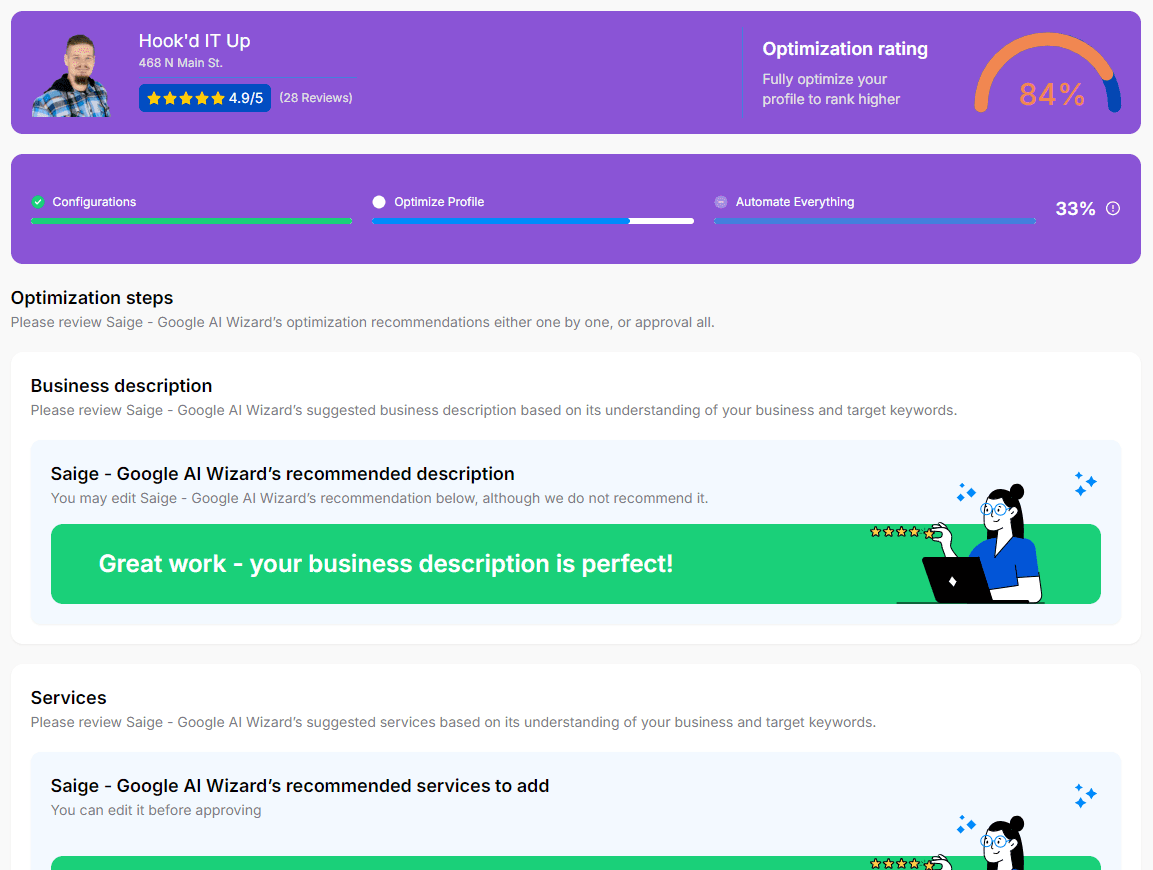
The progress bar at the top of the Optimization steps screen runs through three stages, each weighted at roughly one-third of the path to 100%:
- Configurations — the setup decisions you already made: priority keywords, audit area, brand assets. Approving these locks the foundation in.
- Optimize Profile — the AI's specific recommendations for your business description, services, attributes, hours coverage, and other ranking-relevant profile fields. This is the bulk of the work.
- Automate Everything — the final stage where you turn on the always-on automations (Posts, Reviews, Photos, Q&A, Reports). Once Stage 3 is green, SAIGE is fully running.
Approving an individual recommendation
From your dashboard, click into the Optimize Profile stage. Each recommendation appears as its own card — Business description, Services, Attributes, and so on.
Each card shows what SAIGE recommends. If the AI thinks the field is already strong, you'll see a green 'Great work — looks perfect' confirmation instead of a draft to approve.
Click Approve to publish the AI's suggestion to your Google Business Profile. Or edit the suggestion inline first if you want to adjust the tone or add a detail SAIGE didn't have.
The optimization rating dial at the top updates within seconds. Most operators move from a 30–60% starting score to 80%+ across the first session of approvals.
Approve-all vs. one-by-one
If you trust SAIGE's defaults (most operators do after the first few approvals), the Approve all option accepts every pending recommendation in one click. Best for operators who want speed and have a generic-enough business that the AI's drafts will be accurate without edits.
One-by-one is the right move for regulated industries (medical, legal, financial), highly specific niches where the AI may not have your tone down yet, or businesses with idiosyncratic offerings. You can switch between modes at any time.
What happens after Stage 3
Once Automate Everything is green and the progress bar reads 100%, SAIGE shifts from one-time fixes to the always-on automations. The optimization rating stays where it is unless you make profile changes that affect it. Your scheduled reports start tracking the lift; see Reports & Insights → Understanding the Optimization Rating for what the score means longer-term.
Was this article helpful?
Your feedback helps us prioritize what to write next.