How Customers Leave You a Review
The Reviews article covers the operator-side configuration. This one covers the other side of the flow — what your customer actually experiences when SAIGE asks them for a review. End-to-end, it's three taps and under 30 seconds.
The full flow, end-to-end
- A job wraps. Stripe / Square / Zapier signals SAIGE that the invoice is paid (or a job is marked complete in your CRM).
- Within minutes, the customer gets a personalized email or text from your business. The body is short — "Thanks for choosing [Your Business] today. Two seconds for a quick rating?" — with a tap-to-rate link.
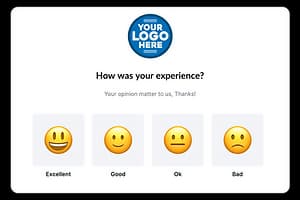
- The customer taps the link. They land on a SAIGE-hosted page branded with your logo and your color, asking "How was your experience?" with four emoji options.
- They tap one. Excellent or Good → SAIGE routes them straight to your Google review form, pre-loaded with a thank-you nudge. OK or Bad → SAIGE routes them to a private feedback form so you hear about the issue before it becomes a public 1-star review.
- If they posted a Google review, SAIGE sees it land within a few minutes and (if you have auto-reply on) publishes a personalized reply. Done.
- The Reviews dashboard updates immediately — total count, rating distribution, days-since-last-review counter all reset.
Why the emoji-routing matters
Most review-request tools blast every customer at a public review form. That works when a customer is delighted, and backfires when they're not. SAIGE's emoji split adds a fork: happy customers go public (where reviews compound), unhappy customers go private (where you can fix the issue and recover the relationship before it costs you a permanent 1-star). The result is a higher star average and a recovery channel for issues you would have missed.
The QR-code option for in-person handoff
From the Reviews dashboard, you can download a printable QR card that points at your review-request landing page. Useful for businesses where the customer doesn't always have email handy at the moment of service — clinics, salons, restaurants, retail. Hand them the card, they scan, they're on the same emoji landing page in two seconds.
Customizing the landing page
From Settings → Brand, the landing page picks up:
- Your logo (the file you uploaded in Setting Up Your Logo)
- Your brand color (used as the background and button accents)
- The prompt text (default is "How was your experience?" — overridable per category, useful for restaurants vs. clinics vs. attorneys)
- The post-rating thank-you message (default is friendly and short — adjust if you have a specific brand voice)
After the review is published
SAIGE listens for new reviews on your Google Business Profile every few minutes. The moment a new one lands, the auto-reply engine drafts (and posts, in fully-automated mode) a tone-appropriate response — and the Reviews dashboard updates the live counts. See the Reviews article for how the per-star reply modes work and how the regulated-industry approval flow keeps you compliant.
Was this article helpful?
Your feedback helps us prioritize what to write next.